Shopify · 5 min read
Moving from WooCommerce to Shopify without losing SEO
The short answer
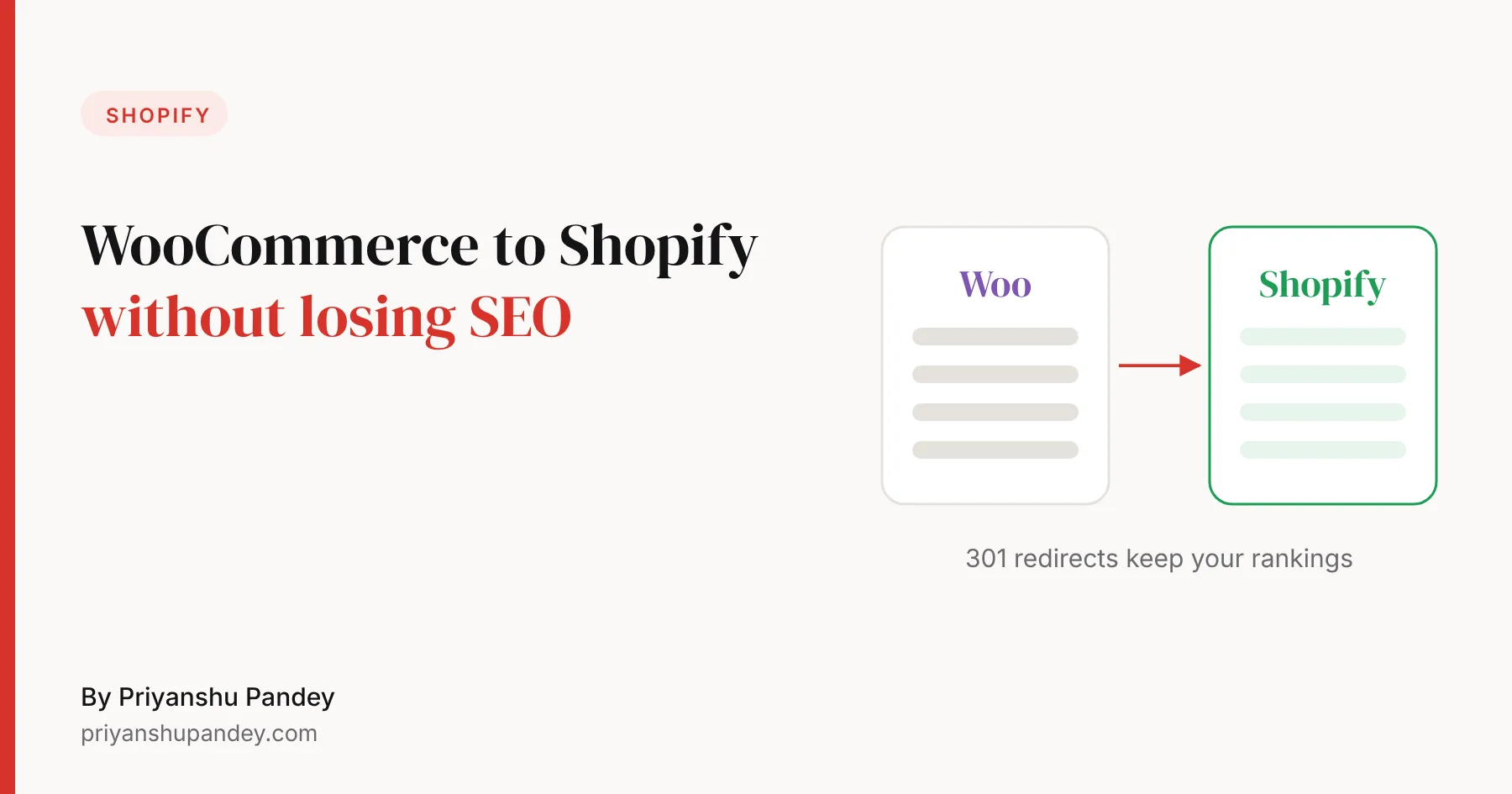
To keep your rankings when moving from WooCommerce to Shopify: record your current URLs and traffic, import products, then customers, then orders, map every old URL to its new Shopify address, create 301 redirects before you switch the domain, keep your titles and descriptions, and watch Search Console daily for two weeks after launch.
Key points
- Shopify uses fixed URL paths, so most URLs change.
- Create redirects before moving the domain, not after.
- Change one thing at a time so you can see what moved rankings.
Why your rankings are at risk
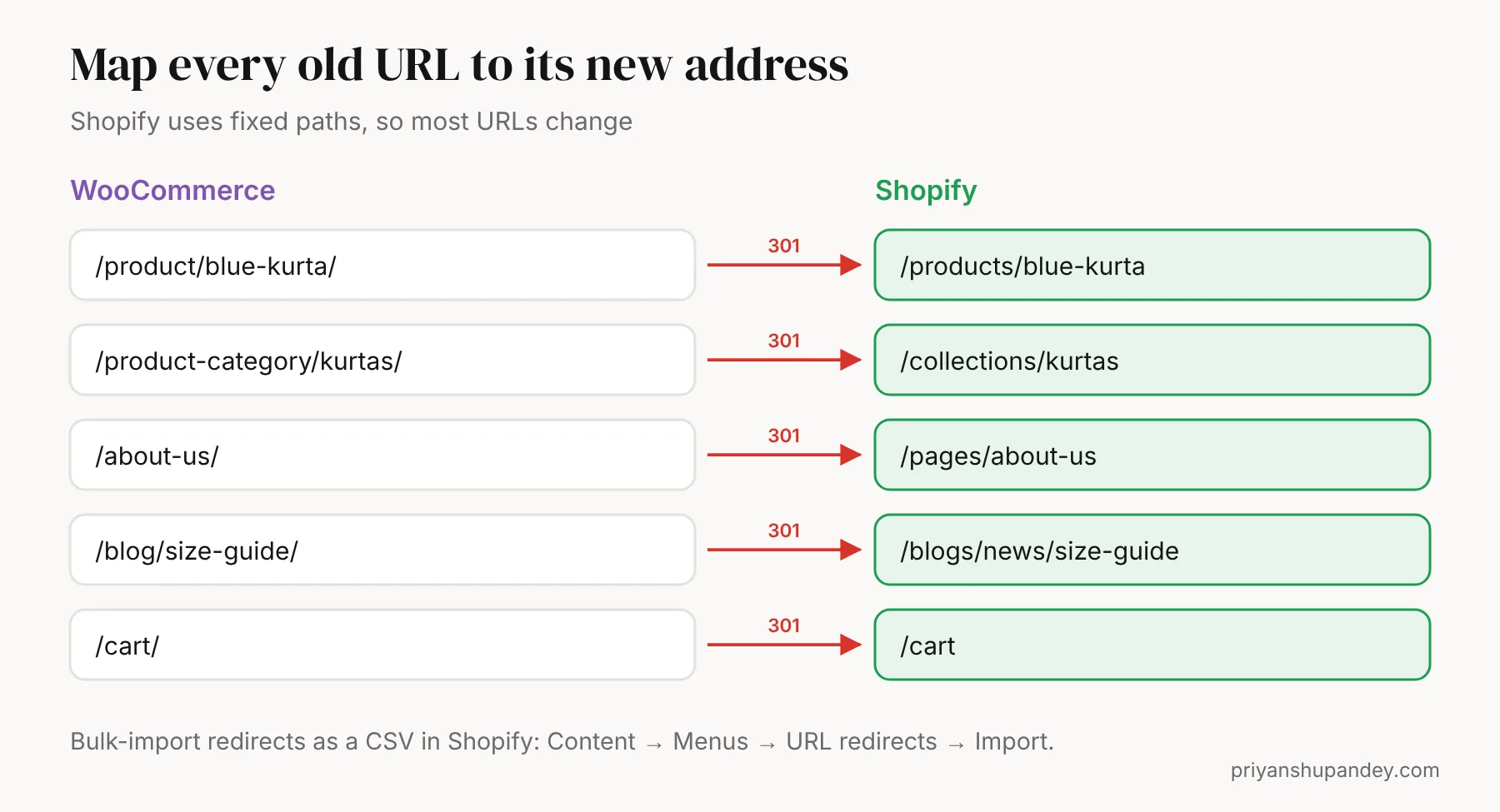
Google ranks individual URLs. Shopify uses fixed paths that differ from WooCommerce: products live under /products/, categories become collections under /collections/, pages under /pages/ and blog posts under /blogs/. Every old URL without a redirect becomes a 404 error, and the ranking it had is lost.
Before you move: benchmark everything
- Export every URL. Use your XML sitemap and a crawler such as Screaming Frog (free up to 500 URLs) to list products, categories, pages, posts and images.
- Record your top pages. In Search Console, export the pages and queries with the most clicks over the last 12 months. These redirects matter most.
- Save your SEO fields. Titles, meta descriptions, product descriptions, image alt text and structured data.
- Note your backlinks. Pages other sites link to must redirect correctly or you lose that value.
Should you move at all?
Moving is worth it when WooCommerce is costing you time: plugin conflicts after updates, slow pages, security worries, or paying a developer for routine fixes. It’s often not worth it if your store relies on heavily customised features that Shopify can’t match without expensive apps, or if your WooCommerce site is fast, stable and ranking well.
| Move to Shopify if… | Stay on WooCommerce if… |
|---|---|
| Updates keep breaking things | Your site is stable and fast |
| You want hosting and security handled | You have a developer you trust on retainer |
| You sell in person too (Shopify POS) | You rely on custom product logic built for you |
| You want simpler day-to-day admin | You need full control over every URL |
What moves, and what doesn’t
| Data | Moves? | Notes |
|---|---|---|
| Products, variants, images | Yes | Check variants and stock after import |
| Collections (categories) | Partly | Rebuild as manual or automated collections |
| Customers | Yes | Passwords can’t be moved; customers set a new one |
| Order history | Yes | Import after products and customers |
| Blog posts and pages | Yes | Often via CSV or an app; check formatting |
| Reviews | Via a review app | Export from your WooCommerce reviews plugin |
| Plugins | No | Replace each with a Shopify app or built-in feature |
How to export your data from WooCommerce
- Products: in WordPress go to Products → All Products → Export to download a CSV with prices, SKUs, stock, categories and image links.
- Customers: export from Users or with a customer export plugin, including names, emails, addresses and marketing consent.
- Orders: WooCommerce has no built-in order export, so use an export plugin or let a migration app pull orders directly.
- Content: list your pages and blog posts from the sitemap; they can be moved with an app or copied across.
- SEO data: export titles and meta descriptions from your SEO plugin (Yoast and Rank Math both offer exports) so they can be re-entered.
Shopify’s own Store Migration app can import products, customers and orders from WooCommerce for you; use CSV files if you want more control over what moves.
Migrate in the right order
Shopify’s own migration checklist sets the order. The key rule for data: import products first, then customers, then historical orders, so orders link to the right products and customers.
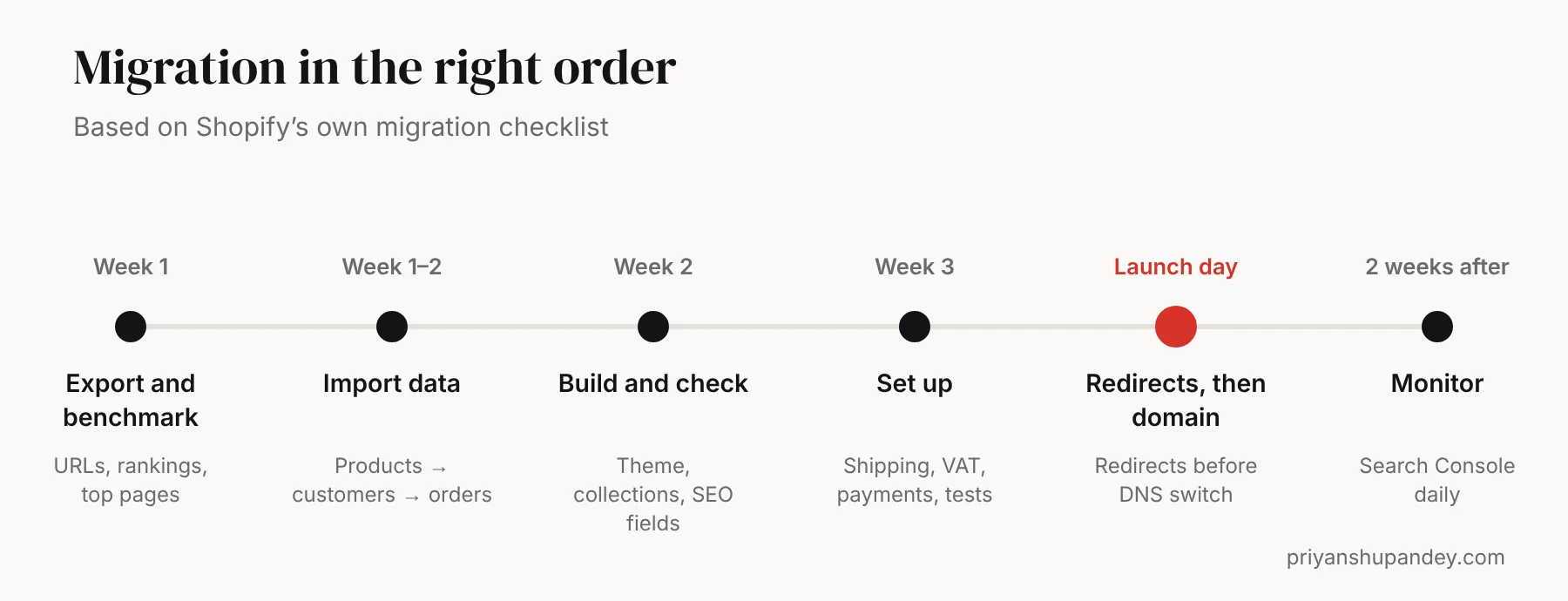
- Import your data with Shopify’s Store Migration app or CSV files: products, then customers, then orders.
- Check products. Prices, weights, variants, stock and descriptions. Publish any hidden products and build your collections.
- Set up the theme and copy your SEO titles and descriptions into each product, collection and page.
- Configure shipping, taxes and payments. Set UK VAT, delivery zones and your payment provider.
- Place test orders. Test successful and failed payments, refunds and customer emails.
Map and create every redirect
Shopify recommends creating URL redirects before transferring your domain. Build a spreadsheet with two columns, old path and new path, then bulk-import it in Shopify under Content → Menus → URL redirects → Import.
| Old WooCommerce URL | New Shopify URL |
|---|---|
| /product/blue-kurta/ | /products/blue-kurta |
| /product-category/kurtas/ | /collections/kurtas |
| /about-us/ | /pages/about-us |
| /blog/size-guide/ | /blogs/news/size-guide |
- Redirect discontinued products to the closest collection, not the homepage.
- Keep product handles (the last part of the URL) the same where you can.
- Avoid redirect chains: old URL to final URL in one step.
Keep every SEO signal
- Titles and descriptions: paste each one into the product, collection or page’s “Search engine listing” section.
- Product handles: keep the same handle so /product/blue-kurta/ becomes /products/blue-kurta.
- Headings and descriptions: move product descriptions as they are; improve them after rankings settle.
- Images: keep descriptive file names and alt text.
- Structured data: most Shopify themes add Product schema; check it with Google’s Rich Results Test.
- Internal links: update links inside blog posts and pages to the new URLs instead of relying on redirects.
Launch day and the two weeks after
- Connect your domain once redirects are live.
- Test your top 50 old URLs and confirm each lands on the right page.
- Submit the new sitemap (yourdomain/sitemap.xml) in Search Console.
- Check the Pages report daily for new 404 errors and fix any missed redirects.
- Check tracking: Google Analytics 4, Meta pixel and conversion events.
A small dip for two to four weeks is normal while Google processes the changes. A large, lasting drop almost always means missing redirects or lost content.
Mistakes that cost rankings
- Switching the domain before redirects exist.
- Rewriting all product descriptions during the move, so you can’t tell what caused a drop.
- Forgetting image alt text and blog posts.
- Leaving the old site live and indexable on another URL, creating duplicates.
Need help with this?
Website design, done for you.
I plan it, my specialist team delivers it, and you get a fixed written quote after a free call.